
Customizing tracks
Tracks may be changed in various ways to analyze data in different ways.
Last updated: May 7, 2026
Tracks may be changed in various ways to analyze data in different ways.
Collapsed and expanded plans/trackers
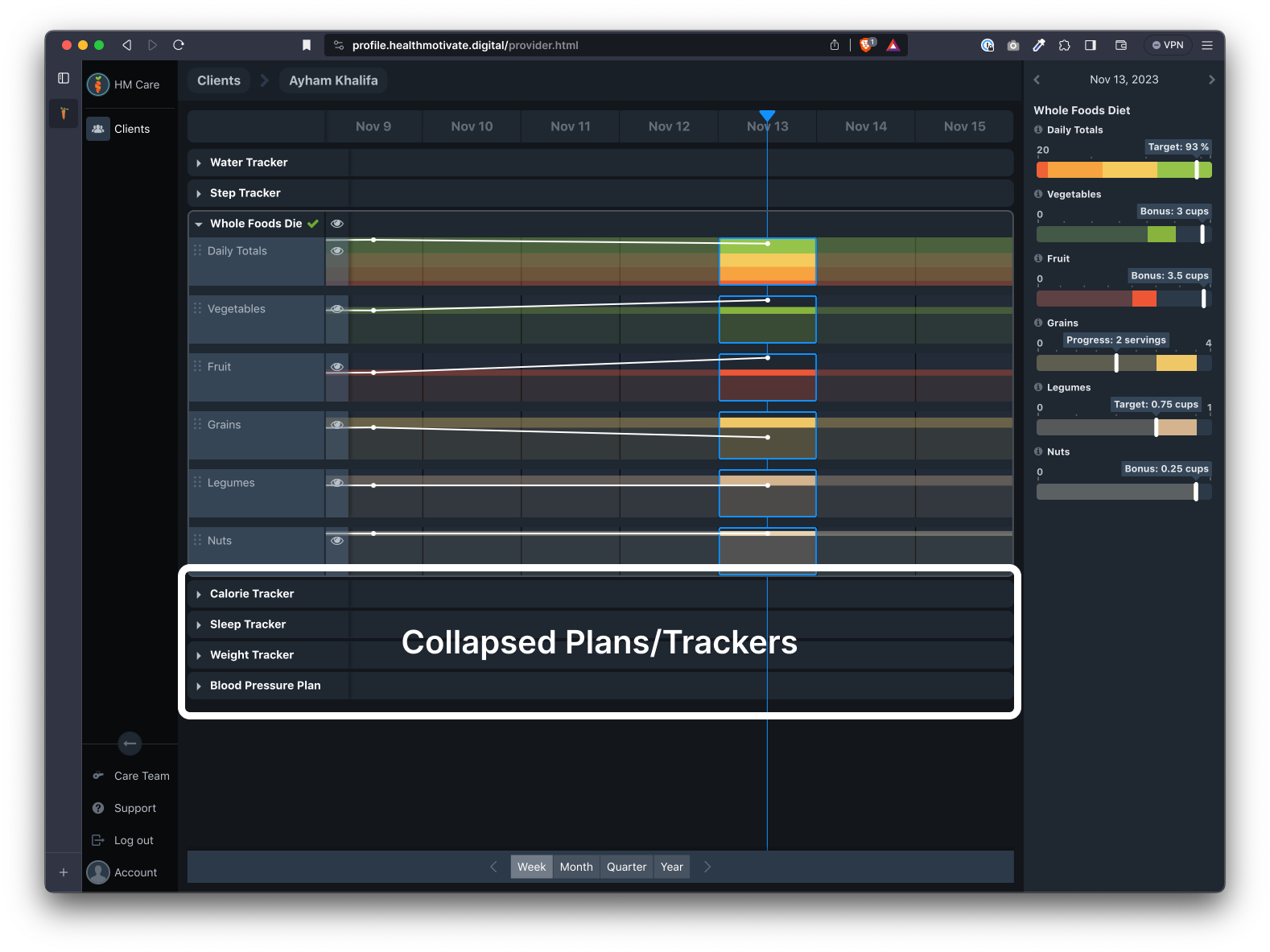
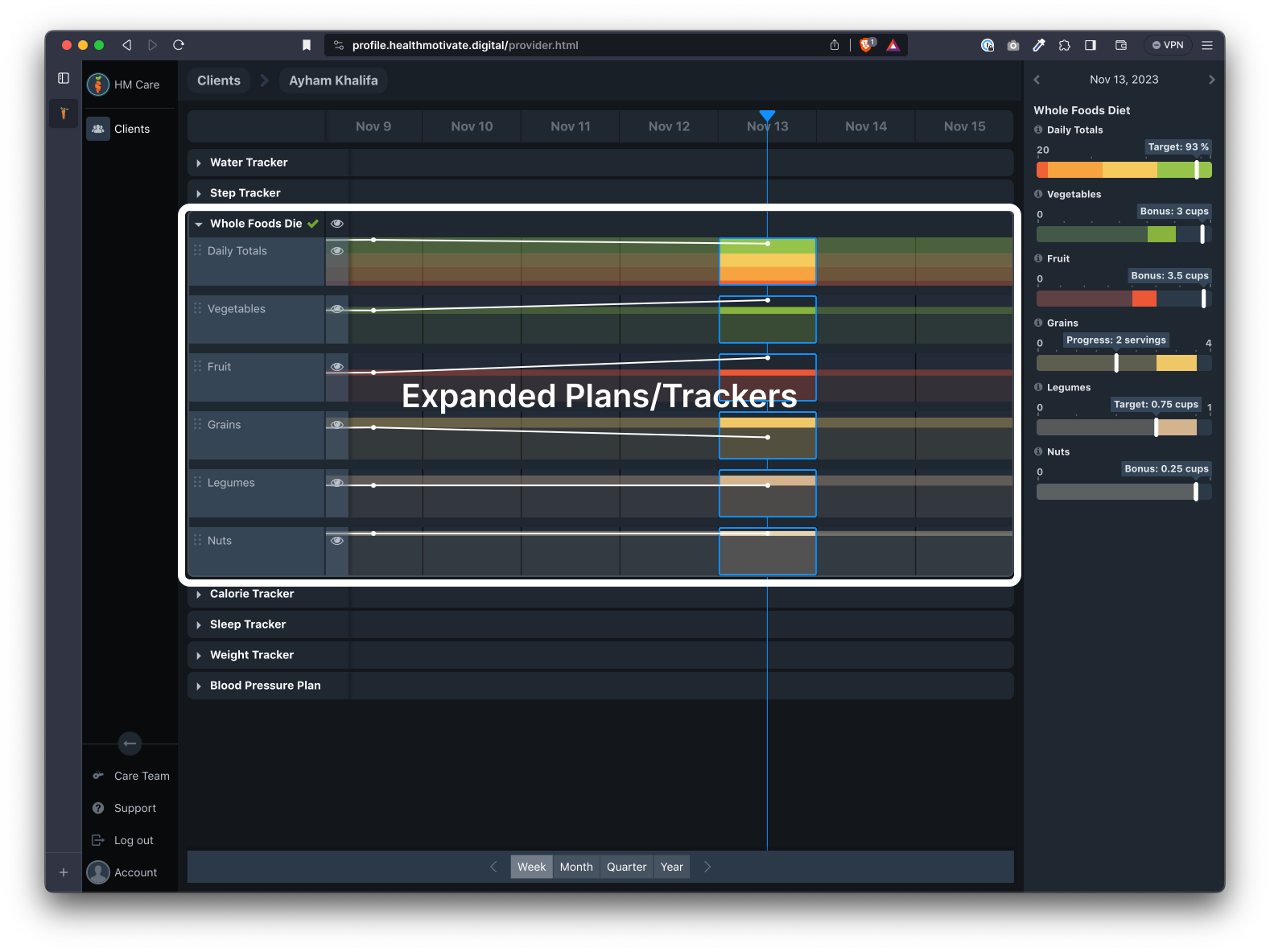
Expanding and collapsing plans/trackers in the tracks area will include or exclude that data from the inspector.
To expand or collapse a plan/tracker, click the arrow next to the title.
Visibility and Arrangement
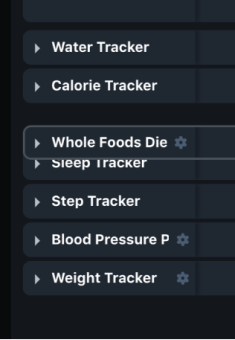
At any time, a plan/tracker may be dragged up or down to change its arrangement (or vertical position) in the timeline.
To drag a plan/tracker, drag anywhere along the title bar. When dragging, all plan metrics will collapse to make it easier to see other plans/trackers. As soon as the mouse is released, the metric tracks will expand again.
Edit mode
To change the visibility of metrics or their arrangement (or vertical position), you must enter edit mode. To do so, click on the gear icon next to a plan/tracker title. This puts the tracks in edit mode.
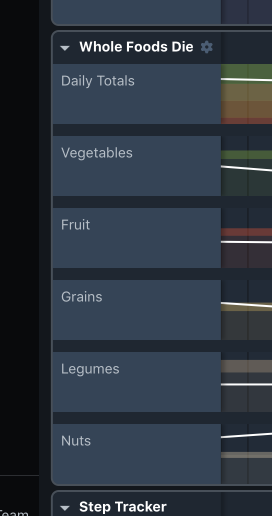
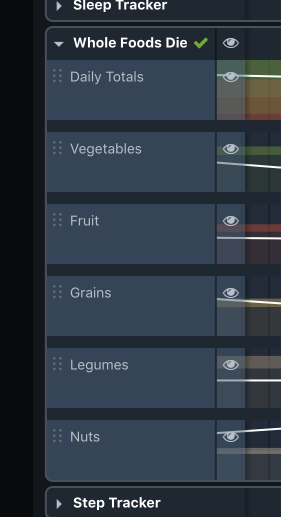
Once in edit mode, each metric track may be rearranged to change their order.
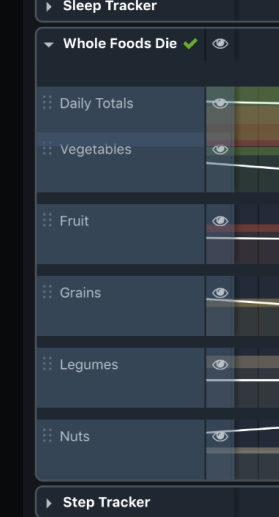
Metric Visibility
In addition to changing the arrangement of metric tracks, the edit menu enables the metrics' visibility to be toggled on or off with the eye icons. Clicking a single metric eye icon will toggle its visibility on or off.
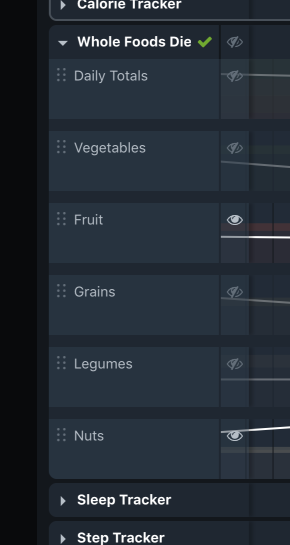
Clicking the eye icon in the plan/tracker title bar will toggle all metrics on or off. Note that at least one metric must be visible. If all metrics are toggled off, when exiting edit mode the default metric will be shown.
![[care/assets/visibility5-hidden-metrics.png|A plan with only one default metric visible]]
Was this article helpful?