
Invite a client
Select "Population (all)" in the left main menu
Last updated: May 7, 2026
Invite a client
Go to "Population (all)"
Select "Population (all)" in the left main menu
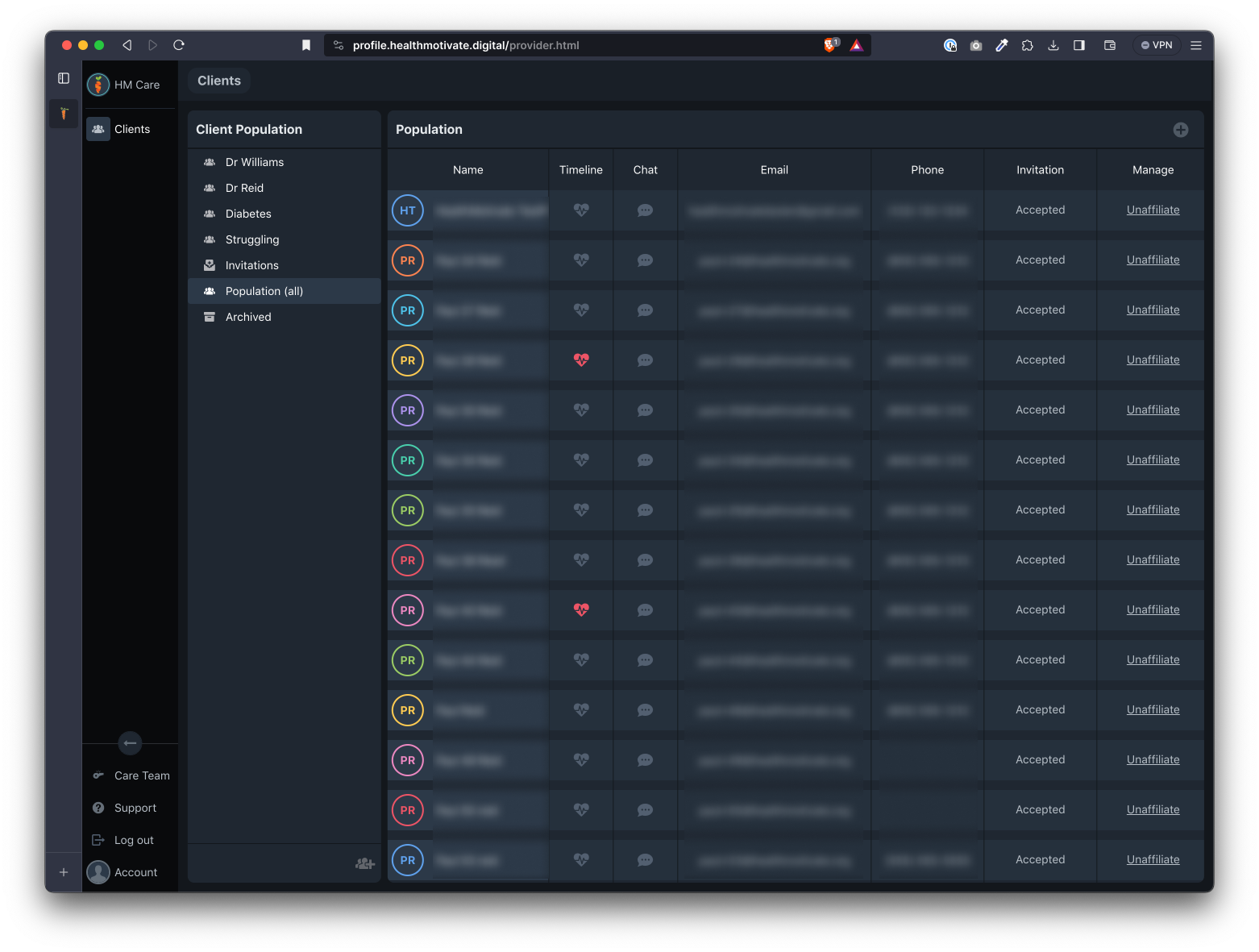
Click the "plus" button
In the "Population (all)" page, click the "plus" button at the top right of the page
Once there, enter the client's details and click "Invite" when done.
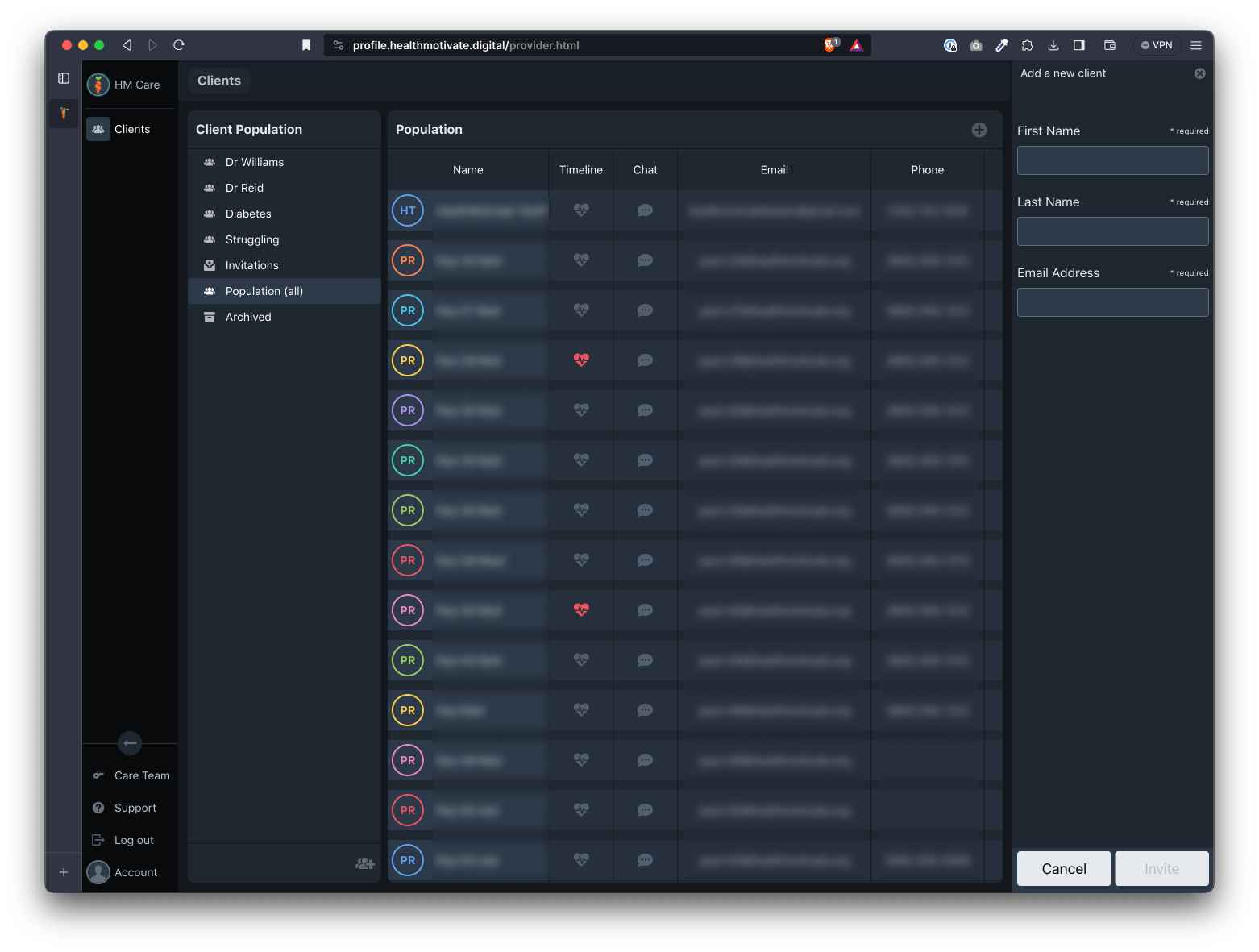
A new client will be added to the list with the word "Pending" in the Invitation column.
The client will receive an email with an invitation to setup an account.
Resend an invite
Client invitations timeout after a set period of time (currently 2 days) for security purposes. If your client has missed the window to setup their account during this timeframe, you may resend an invitation.
Invitations that have expired are labeled "Expired (resend) in the invitation column.
To resend an invitation, click the word "resend" next to the relevant client in the population list. After you have done so, the client will receive another email inviting them to sign up a new account.
Cancel an invite
If you need to cancel a client invitation, find their name in the Population list and click "Cancel" in the "Manage" column.
Was this article helpful?