
Remove a client
Visit "Population (all)" in the left main menu.
Last updated: May 7, 2026
Remove a client affiliation
Go to "Population (all)"
Visit "Population (all)" in the left main menu.
Find the client you wish to remove from your care or practice.
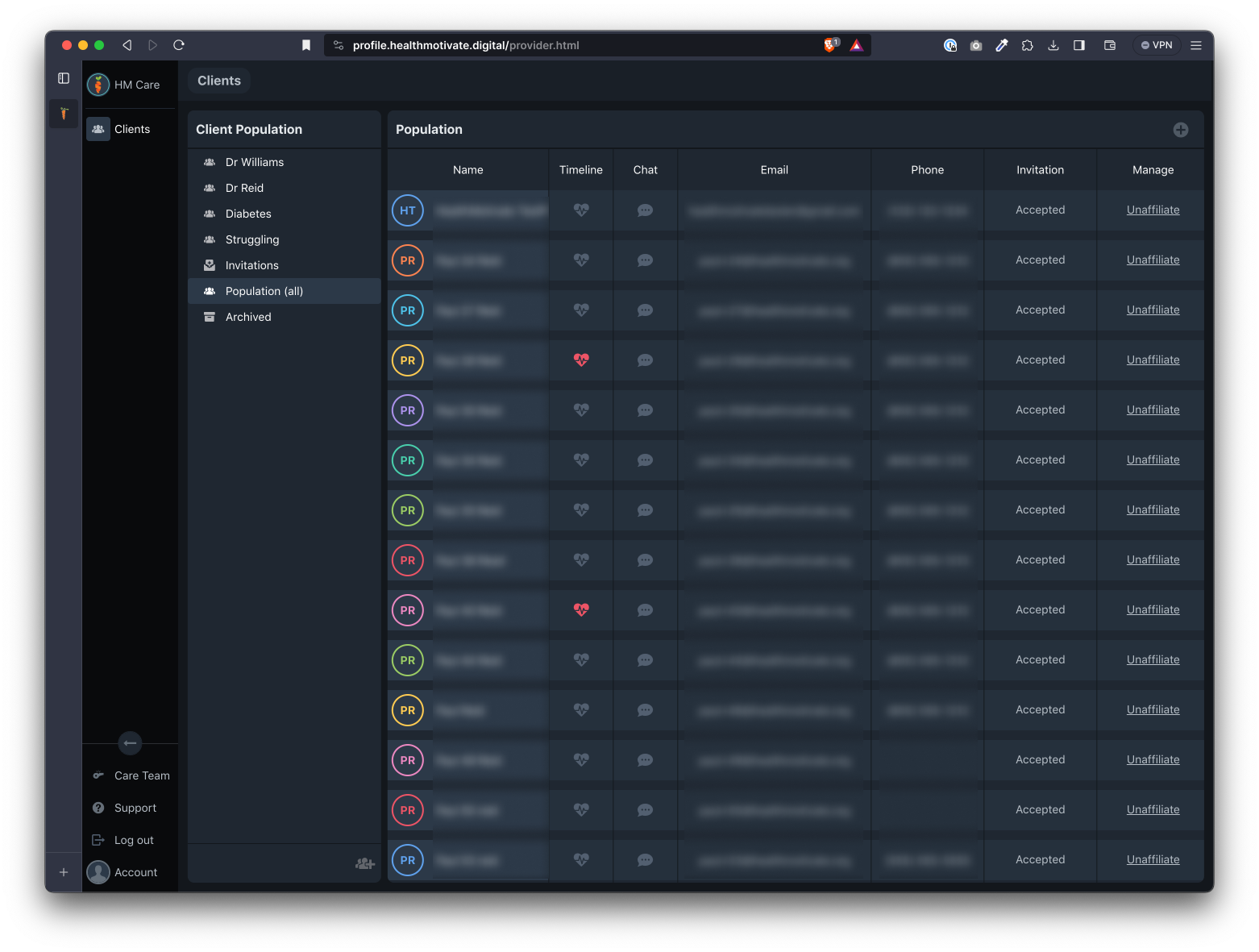
Click "Unaffiliate" in the "Manage" column.
When prompted to confirm the end of the client affiliation, choose "Unaffiliate."
Once a client has been unaffiliated with your care team, their status changes from "Accepted" to "Unaffiliated" (in red) in the "Invitation" column.
Archive a client
If you wish to move an unaffiliated client to the archive, find their name in the population list.
Next to the client's name, click "Archive" in the "Manage" column.
The client will be removed from the Population list, and can be found in the "Archived" group.
Remove a client
Once a client is listed in the archive, you may safely remove them completely. To do so, visit the "Archived" group page.
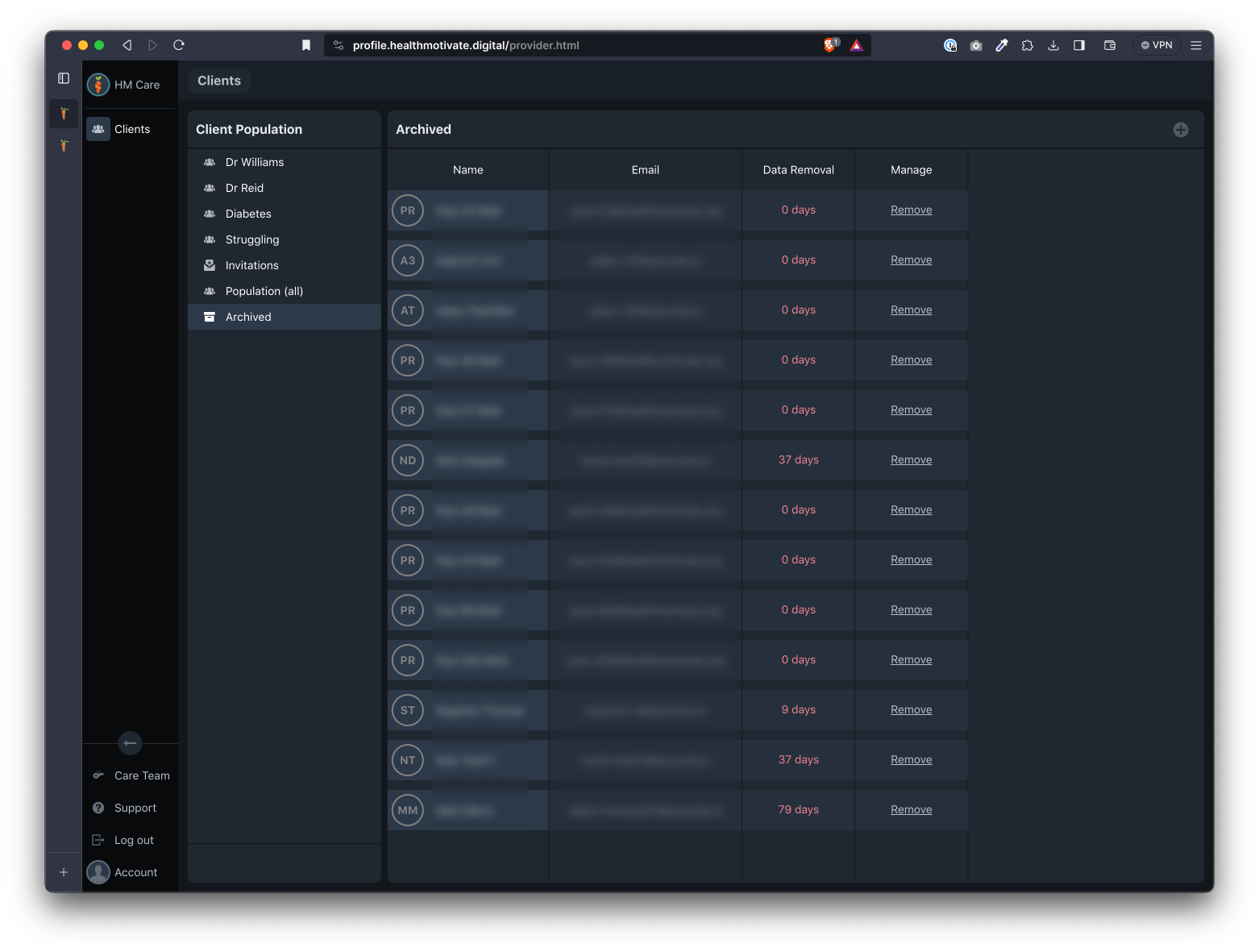
For the client you wish to permanently remove, click the "Remove" link in the "Manage" column.
Was this article helpful?