
Deleting an activity
If you log a value by mistake, you can remove that entry from the trend card and log the correct value in its place.
Last updated: September 13, 2026
If you enter the wrong value into a tracker, you don't have to leave it in your history. You can remove the mistaken entry from the trend card, then log the correct value again.
1. Open the trend card
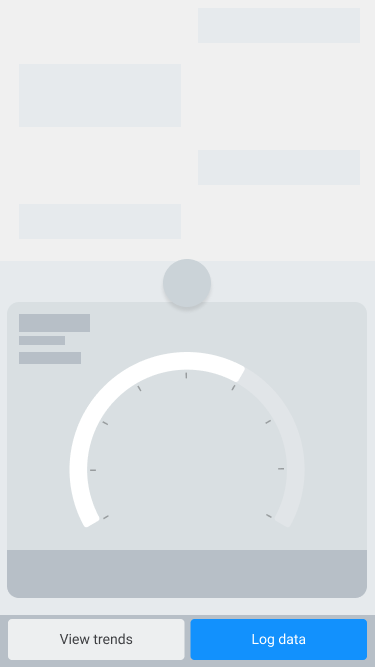
From the tracker's main screen, tap the "View trends" button at the bottom of the screen.
2. Select the day of the mistake
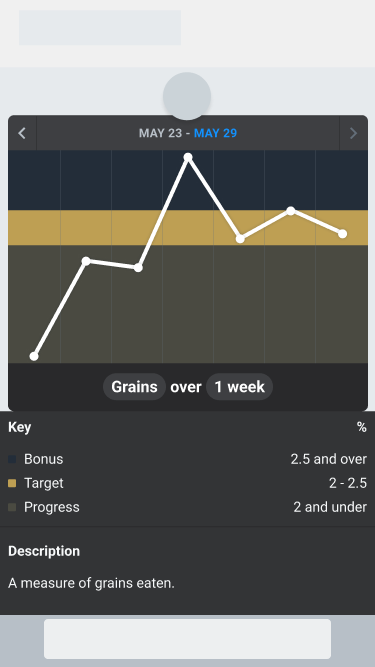
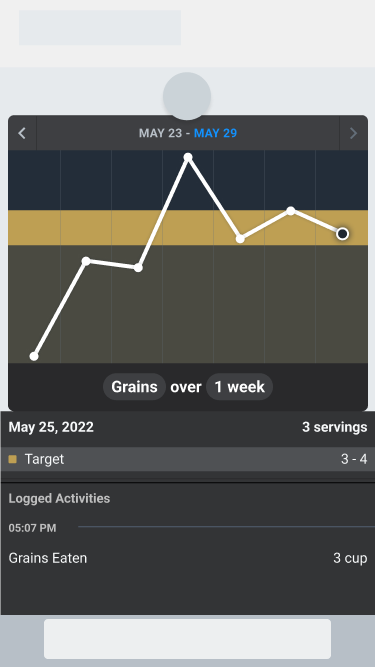
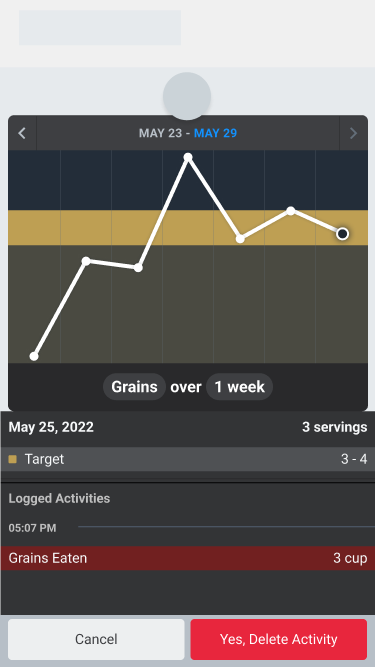
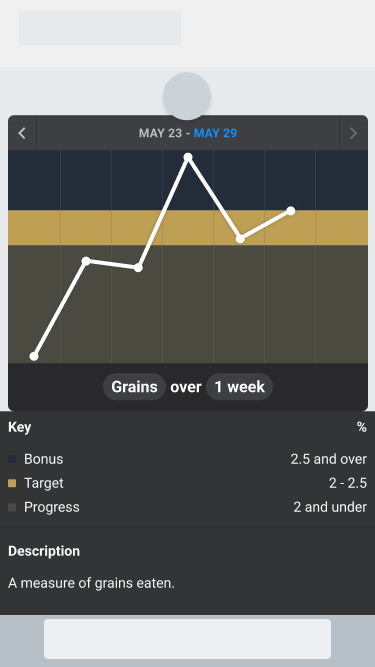
The trend card shows your logged values over time. Tap the plot point for the day the mistaken value was entered. The chart key below the chart is replaced by that day's summary and a scrolling list of every value logged on that day.
3. Select the mistaken value
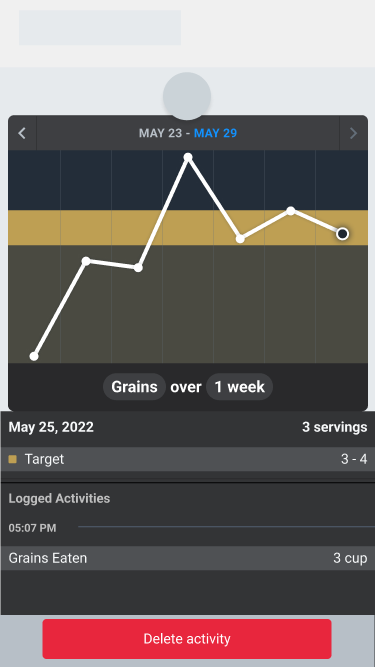
In the "Logged Activities" list, tap the value you entered by mistake. The "Delete activity" button appears at the bottom of the screen.
4. Delete the activity
Tap "Delete activity," then follow the prompt and confirm with "Yes, Delete Activity." The value is removed from the trend card right away.
5. Log the correct value
Go back to the tracker's main screen and enter the correct value as usual. For a refresher on how logging works, see Logging an activity.
Was this article helpful?