
Setup a Smart weight scale
How to set up a Bluetooth smart weight scale and connect it to the HealthMotivate app.
Last updated: May 7, 2026
Setup a Smart weight scale
Setup
Purchase hardware
Check with your care team to see if they have a preferred weight scale for you to use. If they don’t have a preference, purchase one from our recommended list of weight scales:
If your care team DOES have a preferred weight scale, make sure that it has Bluetooth capability, and also that it has an app that is compatible with your smartphone operating system (Android or iOS). Using a weight scale from our recommended list will ensure compatibility.

Download the hardware app and create an account
Once the weight scale is purchased, follow the instructions that came with it to download its app. (If you purchase a weight scale from our recommended list, the app links are available there.) Once it has been downloaded to your smartphone, open it and set up an account. (You will follow links that will say something like, “Create an account” or “Register” or “Sign up.”)
Pair the weight scale with its app
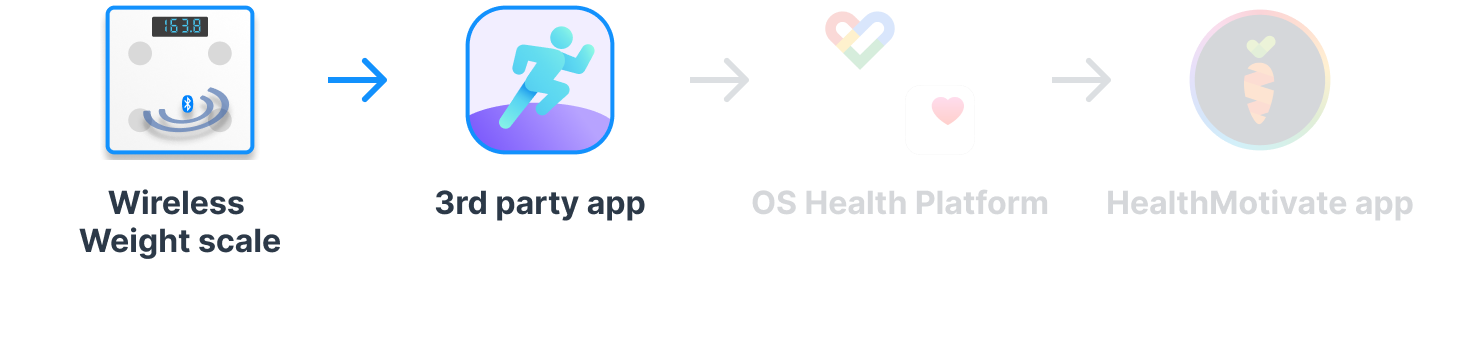
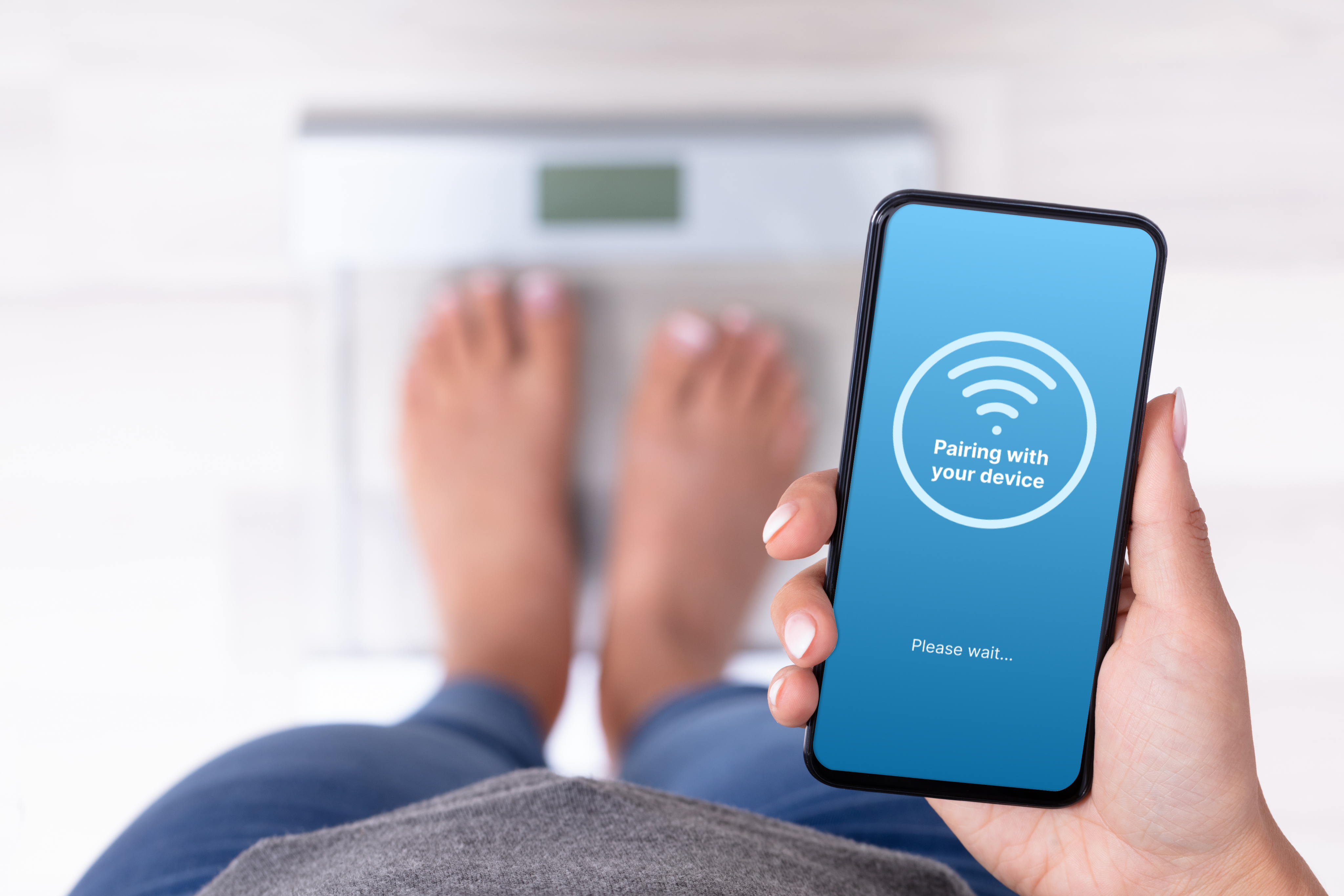
After you have setup an account, find a button in the app to setup or pair with your bluetooth weight scale. It will likely say something like “Add new device.” This step will setup a wireless connection to the weight scale, and it requires your smartphone to have bluetooth turned on.
Connecting an integration
Connecting 3rd party app to OS Health platform
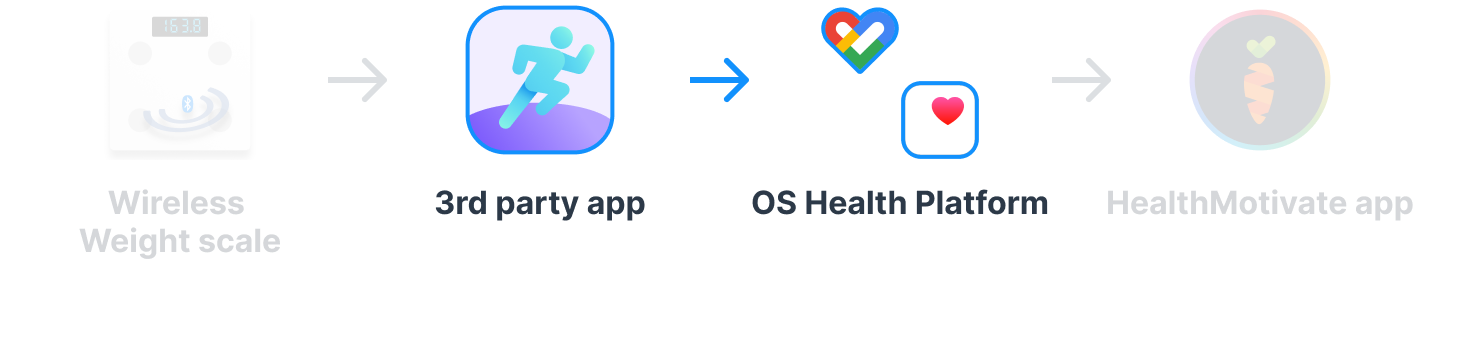
Follow the instructions that came with the weight scale to set it up with your mobile device OS health platform. (Either Apple Health or Google Fit) You will likely look in the app settings for a button that says “Connect a device,” “Link,” “Share/Export/Sync health data,” or “Integrations.” From there you will be taken to your device health platform settings, and you will choose to share your data. This takes care of the data flowing from the weight scale app to the OS health platform.
Sharing OS Health metric data with HealthMotivate app
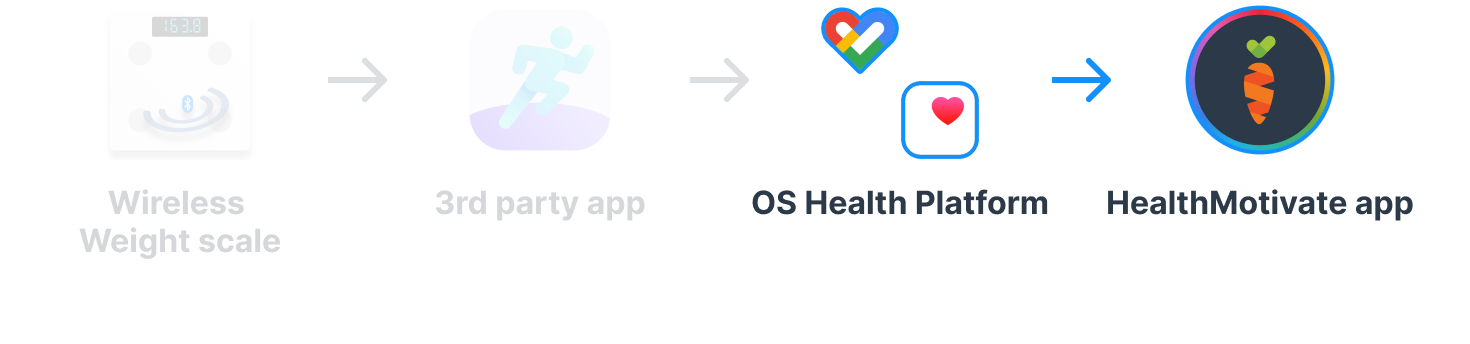
The final step involves sharing your health data from your OS health platform with the HealthMotivate app. To do this, you will need to have the HealthMotivate app downloaded to your device and be logged into your HealthMotivate account.
There are three ways to establish a new integration from inside the HealthMotivate app:
During a new tracker setup
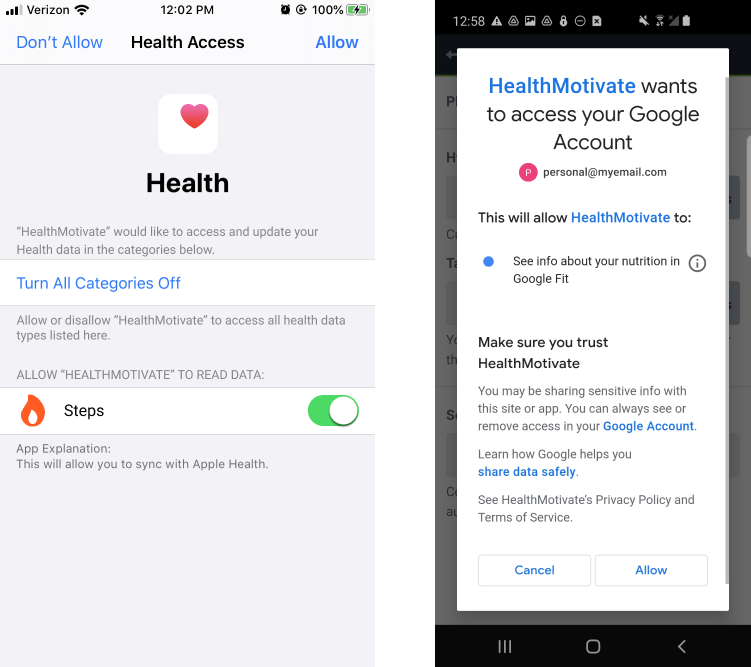
If an integration is available, you will be asked to share your data when you install a new tracker. If you agree, you will be taken outside the HealthMotivate app to your OS health platform, where you will be able to select the individual metrics you wish to share with the HealthMotivate app. After selecting them, you will confirm your choices and then return to the HealthMotivate app. Once there you should see a confirmation that the connection is established.
From the tracker description page
From the dashboard, choose to view the plan browser. Once there, find the tracker that is requesting your health data. Select the tracker that can benefit from an integration. You will be shown its description page. From there, select the settings. Inside the settings, toggle the integrations on.
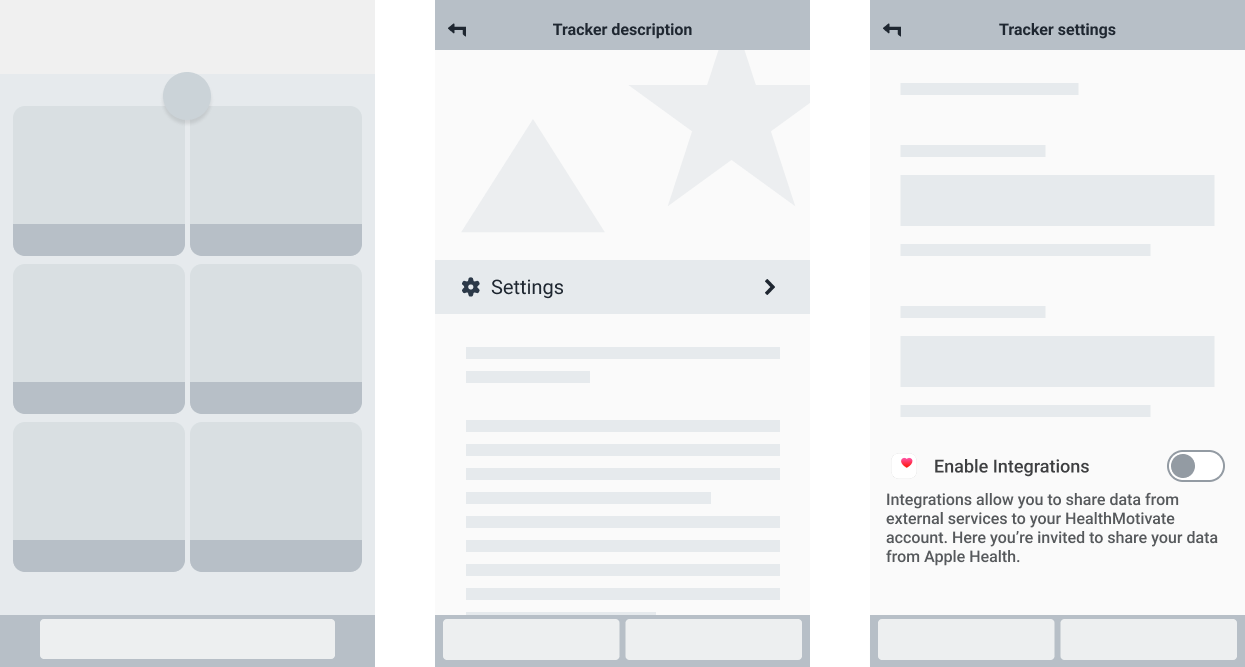
You will be taken outside the HealthMotivate app to your OS health platform, where you will be able to select the individual metrics you wish to share with the HealthMotivate app. After selecting them, you will confirm your choices and then return to the HealthMotivate app. Once there you should see a confirmation that the connection is established.
Viewing a tracker daily total chart
You can turn integrations on or off directly inside the daily total feedback chart. This is the chart you see when you select a card in the dashboard. It gives an overview of your progress so far during the day. When you view the chart, look for the small integrations icon that represents your OS health platform:
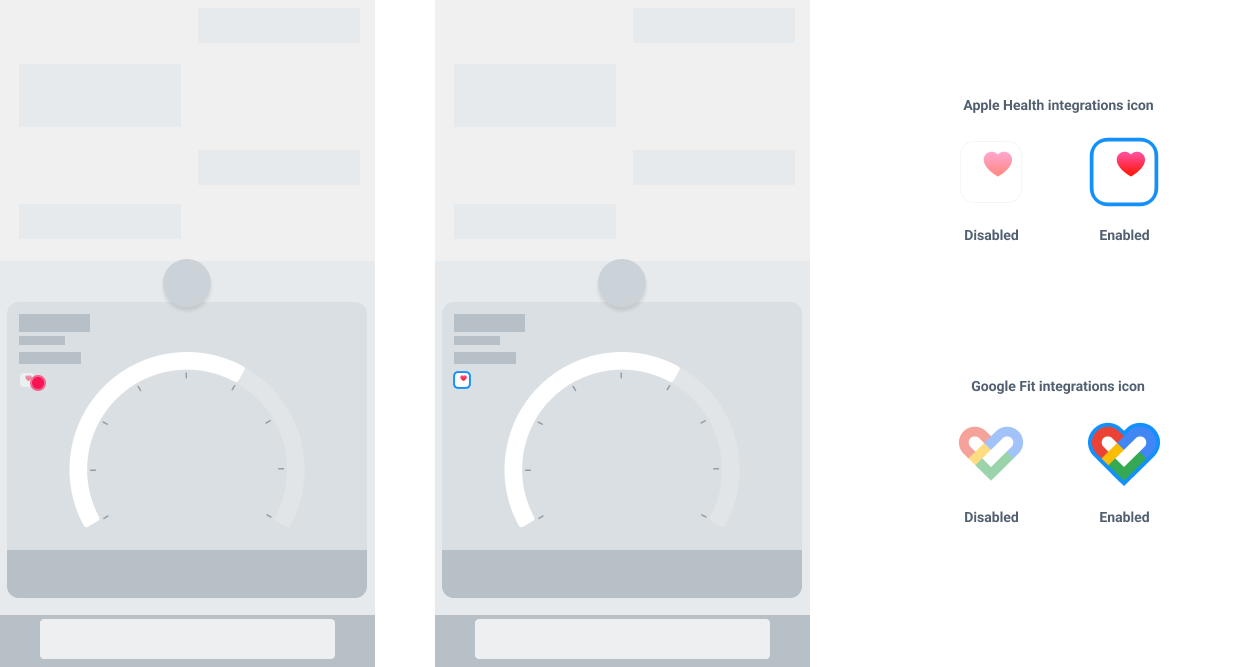
If no integrations have been setup, the icon will be faded. If a service has been established between the HealthMotivate app and your OS health platform, the icon will pulse a blue stroke.
When you select the integrations icon, you will be asked if you want to add or modify an integration. If you choose “yes” you will be taken outside the HealthMotivate app to your OS health platform, where you will be able to select the individual metrics you wish to share with the HealthMotivate app. After selecting them, you will confirm your choices and then return to the HealthMotivate app. Once there you should see a confirmation that the connection is established.
Logging data
If you followed all the instructions above, you should be able to easily share your weight metrics with your care team without having to enter it manually in a HealthMotivate activity tracker!
It is important to note that you must still have your smartphone on and near the weight scale when you are taking a measurement.
And even with an integration setup, you still have to open the HealthMotivate app to send your health activity data to your care team. Just visiting the dashboard and checking out your progress is enough to record your integration data and transfer it to your care team.
Was this article helpful?