
Menu & Navigation
To navigate to different parts of the app, a horizontal menu bar appears in the middle region of the screen. The main menu is always a prominent circl
Last updated: May 7, 2026
General Navigation
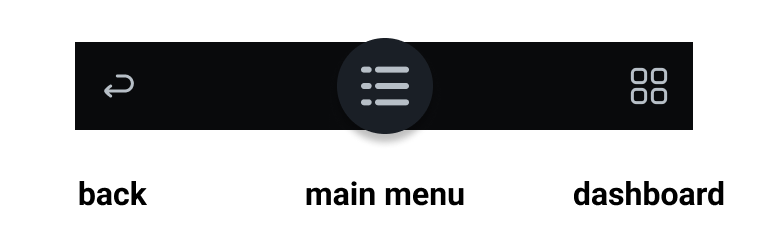
To navigate to different parts of the app, a horizontal menu bar appears in the middle region of the screen. The main menu is always a prominent circle button in the middle. Buttons to the left and right vary, but usually the back button is to the left and the Dashboard or Messaging button is to the right.

Main menu
The main menu is always in the center and takes you to the following areas:
- Account: Check your email address and delete your account.
- Profile: View and edit your personal details that are shared with your care team.
- Legal: Read legal documents connected to your use of the Engage app.
- Affiliations: Accept or cancel affiliation links with a care team on the Engage platform.
- Support: Get answers to your technical questions about the Engage app, and send feedback or suggestions to the development team.
- Logout: Log out of the Engage app

Back
The back button allows you to go back a step.

Dashboard
The dashboard button brings you back to the dashboard, where you can choose to focus on a different activity.

Messaging
The messaging button takes you to your conversations where you can choose specific messaging channels with which to converse. The icon will show a red dot when a new unread message is waiting.
Was this article helpful?