
Step 4: Connect account
Step 4 of getting started: connect your HealthMotivate account to your care team by accepting an affiliation.
Last updated: May 7, 2026
Step 4: Connect account
Purpose
The Engage platform allows clients or patients to connect with participating providers on the platform to promote communication between cohorts and care teams. We do better when we do it together!
During onboarding
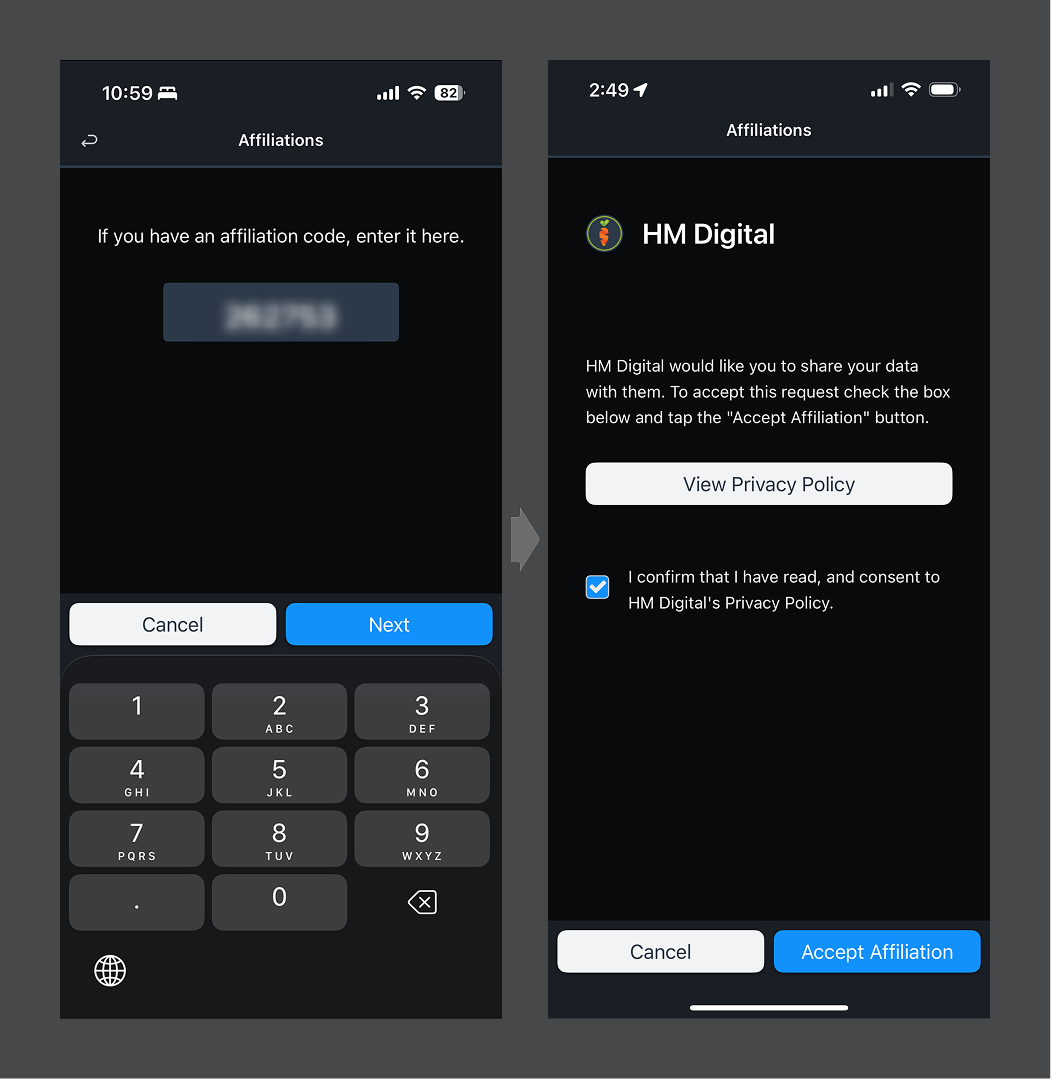
When creating an account for the first time, there is an onboarding process to walk you through profile setup and other helpful steps. If you are creating an account with a pending affiliation from your care team, you will have the opportunity to accept the affiliation request. To accept the request:
- Enter your affiliation code, then tap "Submit." (This should be provided to you either by email or by your care team member directly.)
- You will be notified if your account is affiliated. Choose "Close."
- You may be prompted to allow "HealthMotivate" to send you notifications. It is important to permit this activity in order to be notified of new messages.
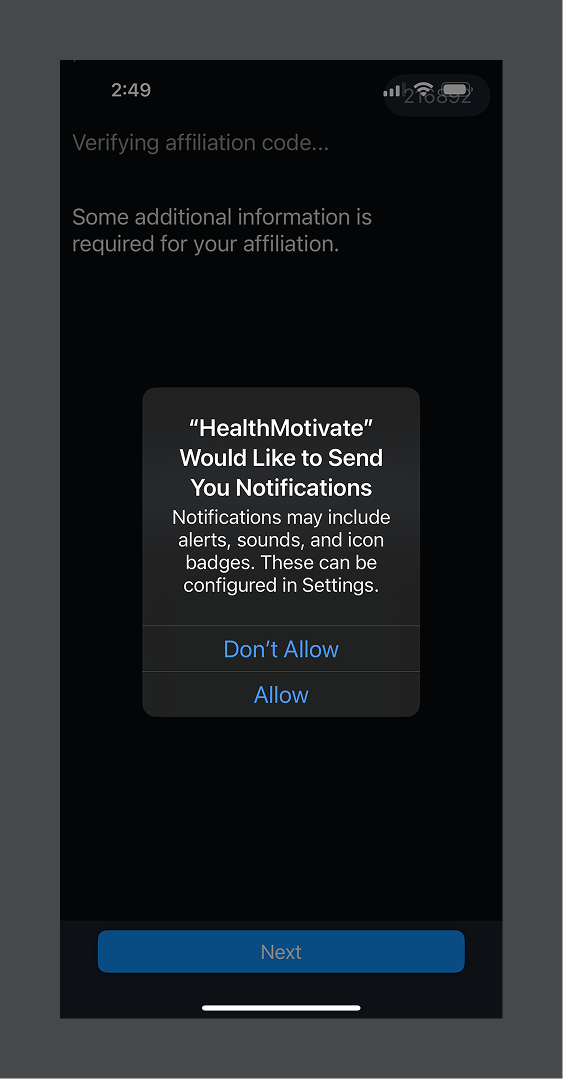
If you skip the affiliation invitation during onboarding, you can always accept the affiliation invite later by viewing the affiliation settings.
If you received an affiliation invitation from your care team, but chose to skip it, you can still accept the affiliation in the app settings. Here are the steps to accept a pending affiliation invite inside Settings:
- From the Main Menu, choose "Affiliations"
- Enter the affiliation code that was emailed to you from your care team. Tap "Next."
- Agree to the privacy terms of your care team.
- Choose to "Accept Affiliation"
After accepting the affiliation invitation, it is also best to revisit your profile in Settings and update all your personal details, including your phone number and date of birth.
If you setup an account before receiving an affiliation request, you may receive an affiliation invitation after you are already signed in and when you launch the app. In this case, it will ask you if you want to accept the invitation. When you do, it will prompt you to confirm your profile details. Once complete, you will then be affiliated with your care team.
Was this article helpful?