
Conversations list
1. Open the Engage App on your iOS or Android device.
Last updated: May 7, 2026
Where to Find Messaging
- Open the Engage App on your iOS or Android device.
- Look for the Chat (or “Messages”) icon on your app dashboard.
- If you have unread messages, the icon will display a red indicator.
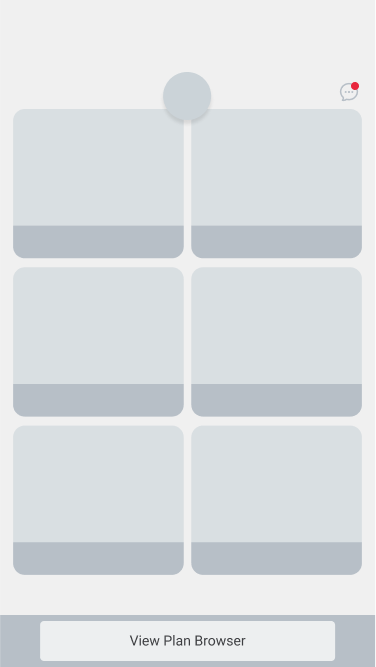
Conversations List
- Tapping the Chat icon brings you to a list of all your “Conversations” (also called messaging channels).
- Care Team: Usually, you’ll see at least one conversation labeled “Care Team” or similar, identified with a blue icon. Here you can read direct messages from your care team staff.
- Peer Groups: If you belong to any support or interest groups, those will also appear in your Conversations list.
Searching for Messages
- A search bar is located at the top of the Conversations list.
- Type in keywords to quickly find past messages within any channel you have access to.
- Tap a search result to jump straight to that point in the conversation.
Was this article helpful?