
Step 5: App Demo
Step 5 of getting started: an overview of how to use SMART goals and key features of the HealthMotivate app.
Last updated: May 7, 2026
Step 5: App Demo
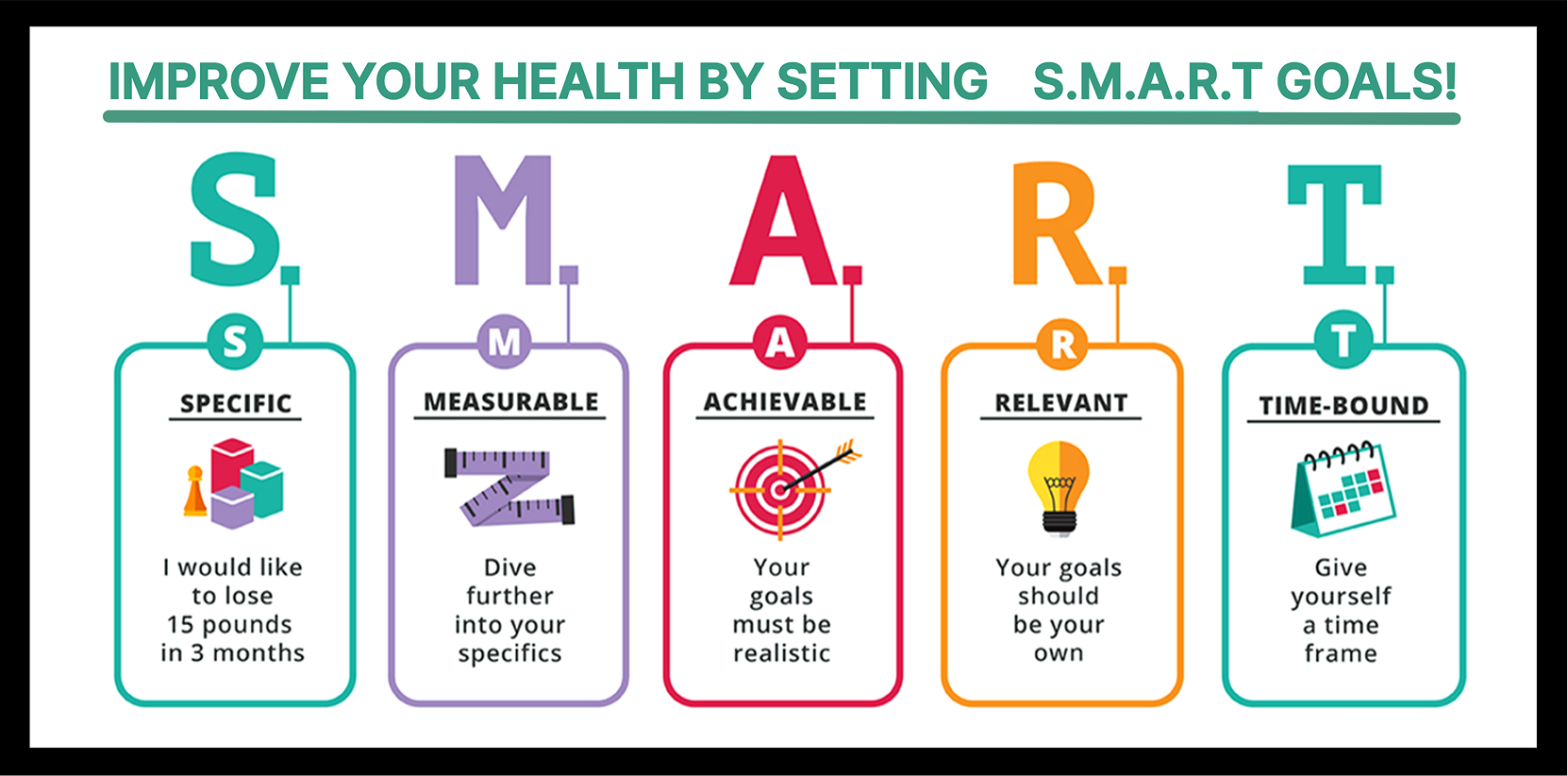
SMART goals are a way of turning vague wishes into clear commitments. Instead of saying “I should work on my health,” you spell out what you’re aiming for, how you’ll know you’re moving forward, whether it’s realistic for your life, why it matters to you, and when you expect to see results. This approach forces you to think things through, make concrete choices, and give your plans a shape that you can actually act on and review, rather than just hoping things will somehow improve.
Activate a tracker
Usually the trackers you will need to use in a specific cohort will be activated automatically. But if you do not see the trackers you need on your dashboard, you can activate them:
- From the Dashboard tap the “View Tracker Catalog” button.
- Choose the tracker you wish to activate.
- In the tracker description, choose "Activate."
Customize settings
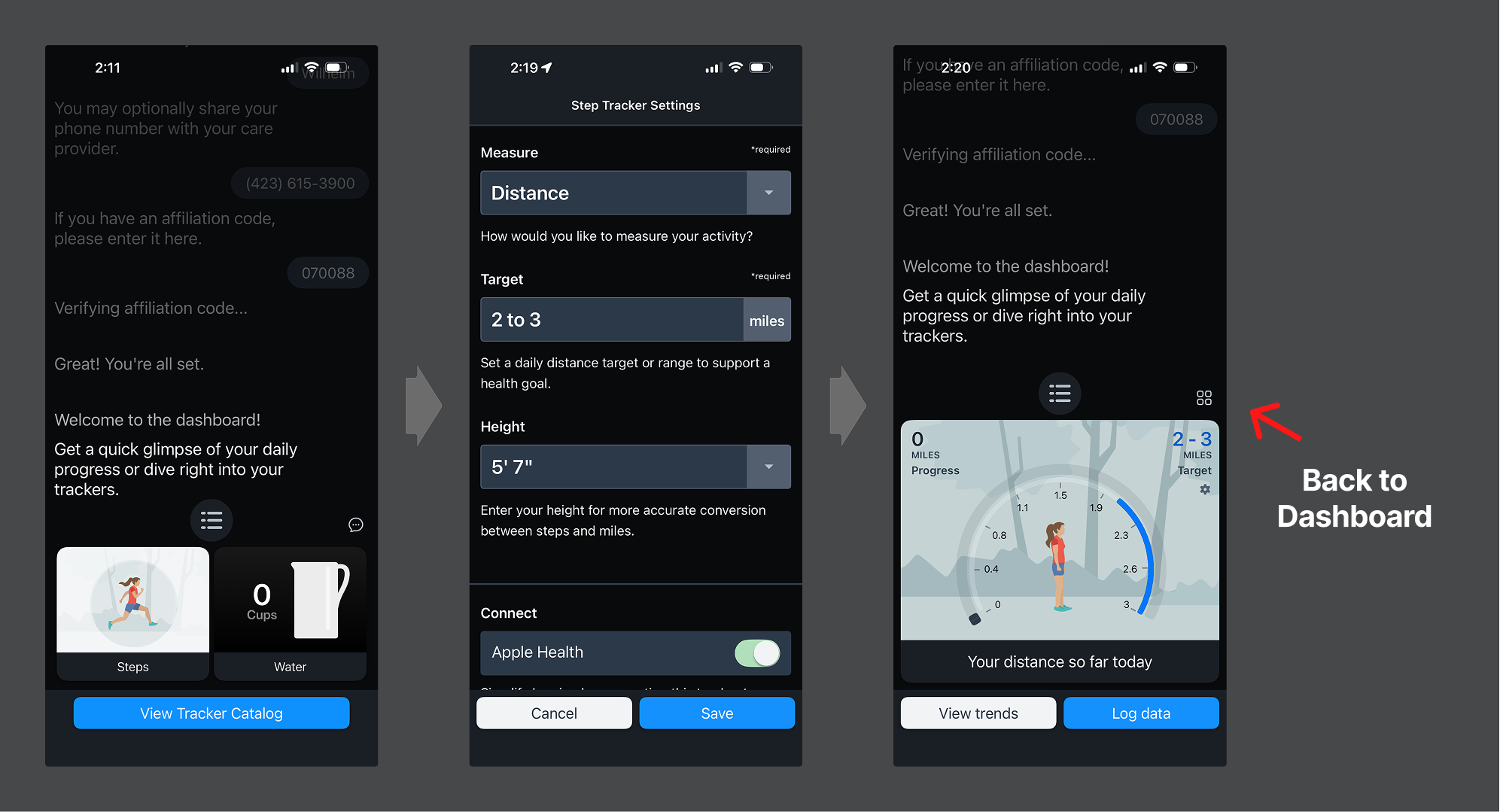
- In the tracker description, choose Settings
- Edit fields as directed by your care team. This is where you will consider your SMART goals and choose the best targets for you. Choose to "Save."
Customize integrations
- In the tracker description, choose Integrations.
- Toggle the integration switch to "On." Then save the settings.
- You will be taken to the Apple Health integration settings.
- Choose the metrics you wish to share with HealthMotivate.
Was this article helpful?