
Messages
1. Tap any conversation in the list to open it.
Last updated: May 7, 2026
Viewing Existing Messages
- Tap any conversation in the list to open it.
- Scroll up to see earlier messages. If there’s a lot of history, messages will load as you scroll.
Sending a New Message
- Type your text into the “Send a message” box at the bottom of the screen.
- Tap the Send or arrow button. Your message appears instantly in the conversation.
Attaching Images, Files, and Links
Posting an image
- In a conversation, look for an attach or paperclip icon near the message input box (the exact icon may vary by device).
- Tap to choose an image from your device library or take a new photo.
- Once uploaded, a thumbnail preview will appear in your message.
- To view the image in full size, tap on the thumbnail.
Attaching Files
- Use the same attach icon to select documents (PDFs, Word files, etc.) from your device.
- A file icon or preview may appear once it’s attached, depending on the file type.
Adding Links
- Copy and paste the URL directly into your message.
- Many links will display a small link preview.
- Tap Send to share it.
Reactions and Threaded replies
Adding a Reaction
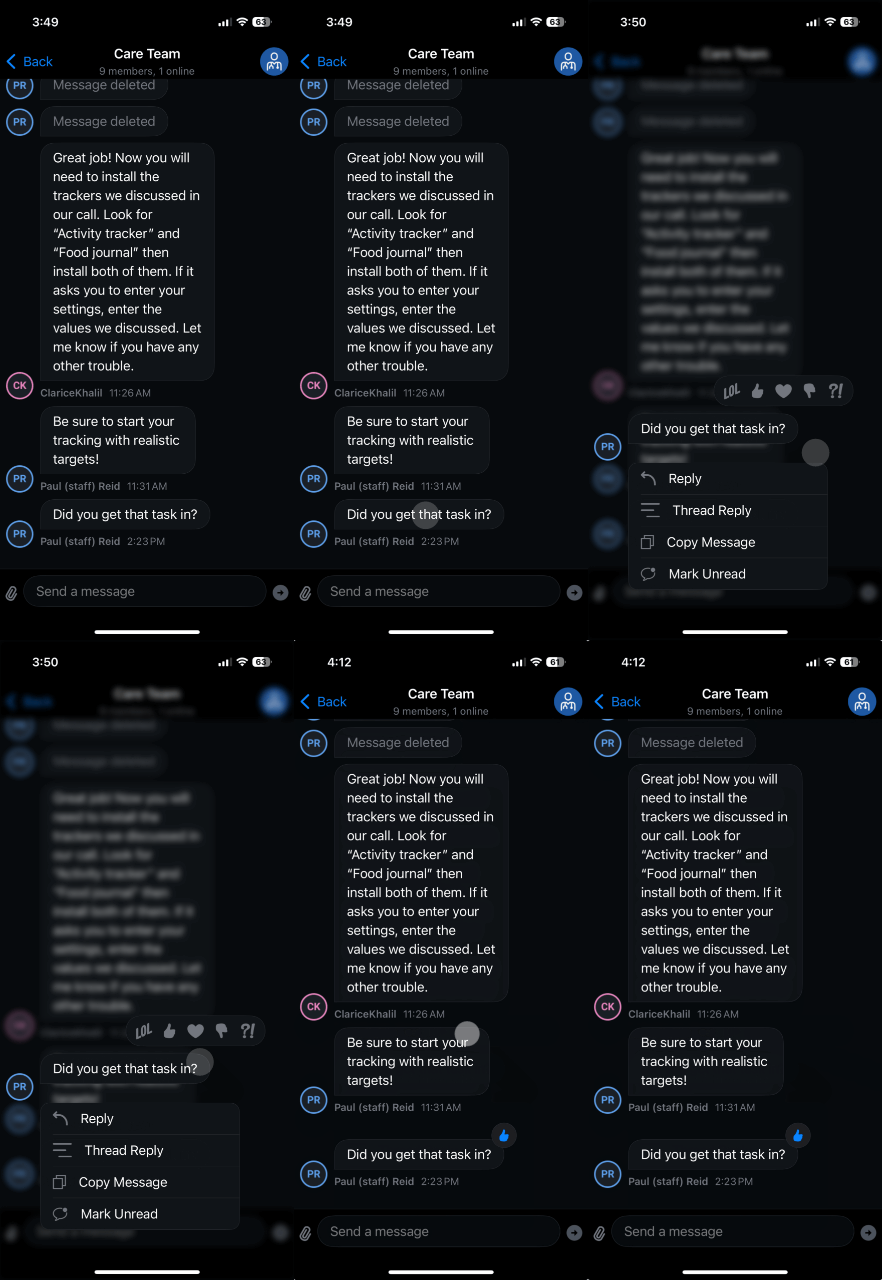
- Tap and hold on a specific message to open the reaction menu.
- Select an emoji (e.g., a thumbs-up, heart, etc.) to react.
- Your chosen emoji will appear below that message for everyone in the conversation to see.
Replying in Threads
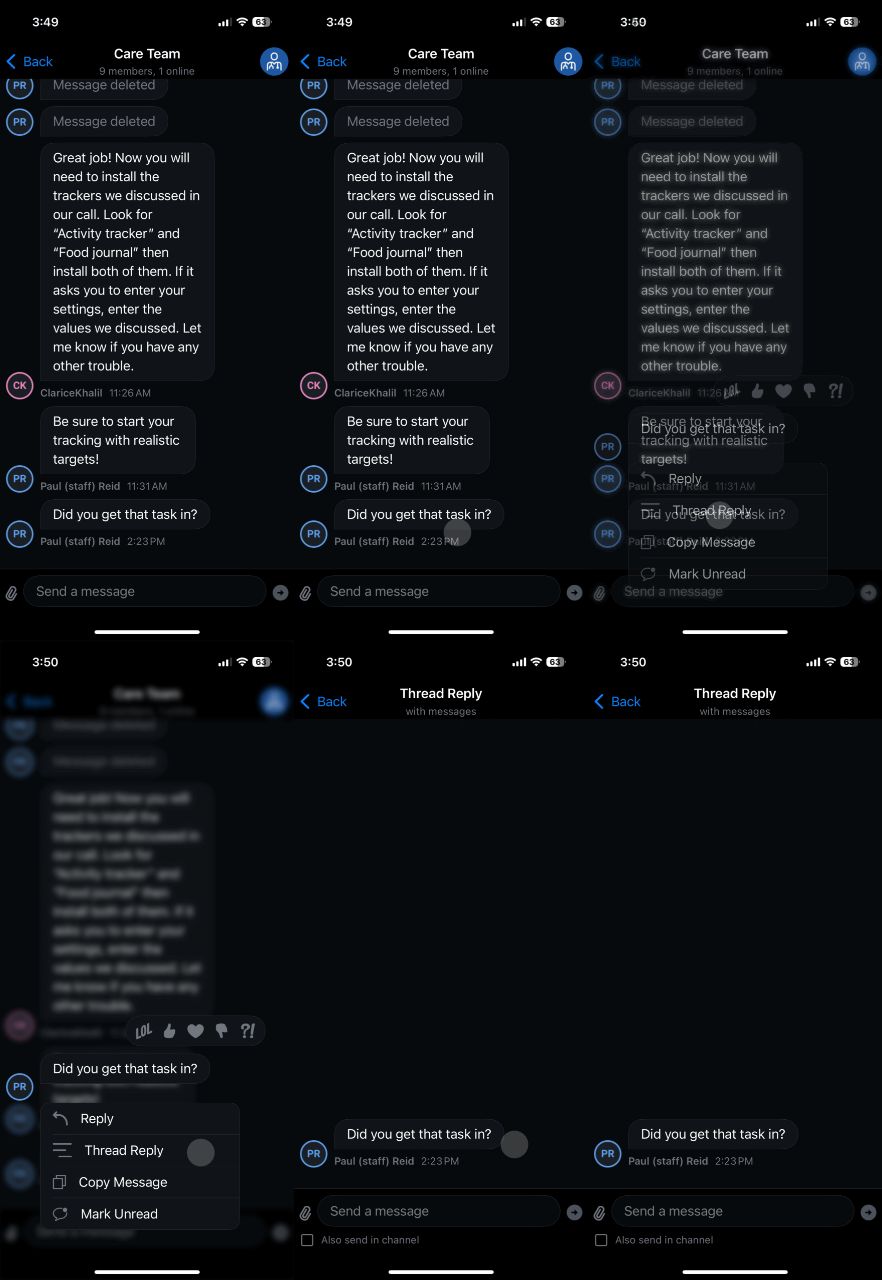
- Tap and hold on the message you want to reply to.
- Select “Reply in Thread” (or “Thread Reply”).
- A separate thread window appears, so you can keep that discussion together.
- Threaded replies also show up in the main conversation view (depending on your app version), but grouped so it’s easy to follow.
Was this article helpful?